Common Reasons Your Mac Is Running Slow
A slow Mac doesn’t always mean it’s time to replace it. Many performance problems have straightforward solutions you can try yourself before paying for a repair.
This guide explains the most common causes of a slow Mac, what you can check at home, and when it’s worth bringing your computer to Computers for Change for professional service.
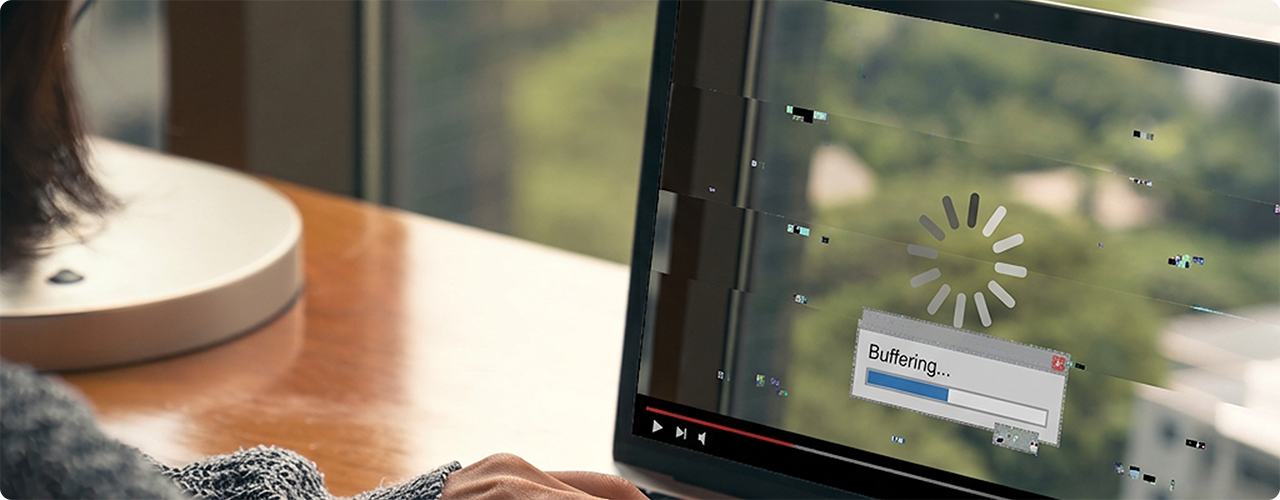
What Usually Causes a Slow Mac
Many slow Macs can be traced back to one of five common issues:
Working through these in order can help resolve many common performance problems.
1. Storage Is Nearly Full
macOS needs free space to perform everyday tasks like creating temporary files, managing memory, and installing updates. When storage gets too full, your Mac can slow down noticeably.
As a general guideline, aim to keep at least 10% of your storage free whenever possible.
2. Too Many Startup and Background Apps
Apps that automatically open when you sign in can use memory and slow down startup times. Cloud storage apps, messaging programs, and other background services are often the biggest offenders.
Review your Login Items in System Settings and disable apps you recognize and don’t need running automatically.
3. An Aging Hard Drive
If you have an older Intel Mac with a traditional hard drive, upgrading to a solid-state drive (SSD) can be one of the most noticeable performance improvements available.
Many older Macs feel significantly faster after an SSD upgrade, with quicker startup times, faster app launches, and smoother everyday performance.
4. Software That Needs Updating
Keeping macOS and your applications up to date can improve both performance and stability.
Before installing major updates, make sure you have a current backup in case something doesn’t go as planned.
5. A Specific App Is Misbehaving
Sometimes the Mac itself isn’t the problem—it’s a single application using far more processing power than it should. Activity Monitor can help identify apps that are consuming excessive CPU resources.
Closing, updating, or reinstalling the app may resolve the issue.
Other Things Worth Trying
Before scheduling a repair, try these simple troubleshooting steps. They often resolve smaller performance issues without any additional work.
When a Slow Mac May Need Professional Repair
If you’ve worked through these steps and your Mac is still running slowly, the problem may require a closer look.
Computers for Change can assess issues involving storage, software, operating system performance, aging hardware, and other components. Depending on the Mac model and the cause of the slowdown, the solution may include an SSD upgrade, storage cleanup, software troubleshooting, macOS reinstallation, or another repair.
Most repairs start at $99 plus parts, and we’ll explain your options before repair work begins.
What to Expect When You Bring In Your Mac
You don’t need to know exactly what’s wrong before you visit. We’ll help identify what’s causing the slowdown and explain your options before you commit to a repair.
We Assess Your Mac
We’ll look at the Mac’s storage, software, performance, and hardware to identify potential causes of the slowdown.
We Identify the Problem
The issue could be something simple, such as limited storage or unnecessary background software, or something that requires a hardware repair or upgrade.
We Recommend the Right Solution
Depending on what we find, we may recommend software troubleshooting, storage cleanup, an SSD upgrade, macOS services, or another repair.
You Get a Quote
We’ll explain the recommended work and provide a quote before repair work begins. You can then decide whether repairing or upgrading the Mac makes sense.
We Complete the Repair
Once approved, we’ll complete the repair and let you know when your Mac is ready. Many repairs can be completed the same day or by the next business day when parts are available.
Frequently Asked Questions
Why Is My Mac Running So Slow All of a Sudden?
A sudden slowdown is often caused by a full storage drive, too many background apps, a software update running, or a specific app using excessive system resources. Working through the steps in this guide can help identify the cause before you bring your Mac in for service.
Will an SSD Upgrade Make My Mac Faster?
If your Mac still uses a traditional hard drive, an SSD upgrade is one of the biggest performance improvements you can make. Everyday tasks like starting up, opening applications, and browsing the web become noticeably faster.
If your Mac already has an SSD, storage cleanup or software troubleshooting may provide a better improvement.
How Much Free Storage Should My Mac Have?
Try to keep at least 10–15% of your storage free, macOS relies on available space for temporary files, virtual memory, and system processes. When your drive is nearly full, performance can slow down significantly.
Why Is My M1, M2, or Newer Mac Running Slow?
On newer Apple silicon Macs, slow performance is often caused by limited free storage, a resource-heavy application, background syncing, or software issues. Identifying the likely cause can help determine the right fix or next step.
When Should I Bring My Mac in for Repair?
If you’ve cleared storage, checked startup apps, installed updates, and your Mac is still running slowly, it may be time for a professional assessment.
We can assess possible hardware issues, perform SSD upgrades where appropriate, troubleshoot software problems, and help you compare repairing your Mac with replacing it.
Related Services and Guides
Mac Repair
Learn about our Mac repair services, including hardware repairs, software troubleshooting, and performance upgrades for desktop Macs.
View Mac Repair Services
MacBook Repair
See the MacBook Air and MacBook Pro repairs we offer, from battery and screen replacements to storage upgrades and performance improvements.
View MacBook Repair Services
How Much Does a Mac Repair Cost?
Understand what affects Mac repair pricing and when repairing your computer makes more sense than replacing it.
Read the guide
How to Check Your Mac for a Virus
Learn how to identify common Mac malware, adware, browser hijackers, and other security threats.
Read the guide
Refurbished Laptops
Looking for a replacement instead? Browse our professionally refurbished laptops backed by a 1-year hardware warranty.
Read the guide
Still Wondering Why Your Mac Is Running Slow?
Visit Computers for Change at 196 College Street in Burlington, or request a quote online.
We’ll help determine whether your Mac needs a software cleanup, SSD upgrade, another repair, or whether replacing it makes more sense.
Signs Your Mac May Have a Virus or Malware
While Macs are generally less likely than Windows PCs to be infected, they’re not immune. Most Mac security problems today involve adware, browser hijackers, phishing scams, or unwanted software rather than traditional viruses.
Here’s how to recognize common warning signs, what you can safely check yourself, and when it may be time to bring your Mac to our Burlington repair shop.
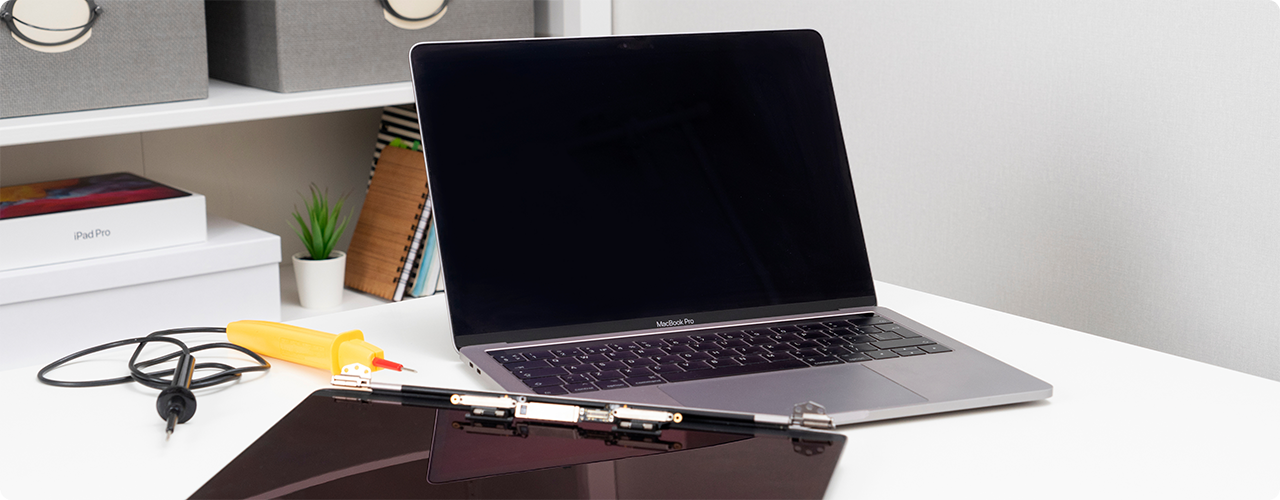
What Most Mac Malware Looks Like
Most Macs that customers think have a virus are actually dealing with adware, fake security alerts, unwanted browser extensions, or phishing scams.
Before assuming your Mac is infected, it’s worth checking a few common areas that often reveal the source of the problem. If the issue continues after these checks, a professional cleanup or fresh macOS installation may be the safest solution.
1. Watch for Unexpected Pop-Ups and Browser Changes
The most common sign of unwanted software isn’t a damaged Mac—it’s a browser that’s behaving differently than normal.
You may notice:
These issues are usually caused by adware or browser hijackers rather than traditional viruses.
2. Check for Unfamiliar Apps or Login Items
Some unwanted programs automatically launch every time your Mac starts.
Open System Settings > General > Login Items and review what launches automatically. Disable items you know you don’t need or that you know you didn’t install.
Also check your Applications folder for software you know you didn’t install or no longer use.
3. Keep macOS Updated
Apple regularly updates macOS with security improvements through built-in protections like XProtect and the Malware Removal Tool.
Installing available macOS updates helps keep built-in security protections current and addresses known security vulnerabilities.
4. Don’t Trust Fake Virus Warnings
One of the most common scams we see is a webpage claiming your Mac is infected and urging you to call a phone number immediately.
Browser alerts that claim your Mac is infected and tell you to call a phone number or download software are typically scams.
If this happens:
Legitimate Apple security alerts do not ask you through a webpage to call a support number, and Apple does not make unsolicited calls claiming your Mac is infected.
5. If Your Mac Suddenly Feels Unusually Slow
Malware isn’t the only reason a Mac slows down.
Performance issues are more commonly caused by:
If your Mac has become slow without obvious browser issues, start with our Mac performance troubleshooting guide before assuming it’s infected. Many performance problems have causes unrelated to malware and can often be resolved without virus removal.
Other Things Worth Trying
When to Bring It In
If pop-ups keep returning, your browser continues redirecting you, or your Mac still behaves strangely after following these steps, it may be time for a professional assessment.
For some malware or software problems, a clean macOS installation may be the most practical solution. We’ll assess the issue first and recommend the appropriate next step.
Since reinstalling macOS erases the drive, we recommend backing up any important files beforehand.
Most repairs start at $99 plus parts, and we’ll explain your options before repair work begins.
What to Expect When You Bring In Your Mac
You don’t need to know whether your Mac actually has a virus before visiting. We’ll help determine what’s causing the problem.
Tell Us What’s Happening
Bring your Mac to our Burlington shop and explain what you’ve noticed, such as pop-ups, redirects, unfamiliar programs, or unusual performance.
We Assess the Problem
We’ll check the Mac for potential malware, unwanted software, browser issues, macOS problems, and other possible causes.
We Explain Your Options
Depending on what we find, the solution may involve removing unwanted software, troubleshooting macOS, cleaning up the system, or reinstalling macOS.
You Get a Quote
We’ll explain the recommended service and provide a quote before repair work begins.
We Complete The Service
Once approved, we’ll complete the appropriate cleanup or repair and let you know when your Mac is ready.
Frequently Asked Questions
Can Macs Really Get Viruses?
Yes, although traditional self-replicating viruses are uncommon on macOS. We more often see adware, browser hijackers, phishing attempts, and fake security alerts than classic viruses.
How Do I Know if a Virus Warning on My Mac Is Real?
If a webpage claims your Mac is infected and tells you to call a phone number or immediately download security software, treat it as a scam and close the page. Real macOS security notifications don’t appear as browser pop-ups asking you to call support.
Do I Need Antivirus Software on My Mac?
For many users, Apple’s built-in security features provide strong everyday protection when macOS is kept up to date. Safe browsing habits and downloading software only from trusted sources are just as important.
Can You Remove Malware From My Mac?
Yes. Depending on the issue, we can remove unwanted software, troubleshoot browser problems, or perform a clean macOS installation when that’s the most reliable solution.
Will I Lose My Files if macOS Needs to Be Reinstalled?
A clean installation erases the drive, so we recommend backing up your files first. If you need help recovering or transferring your data, we can discuss the available options before the macOS reinstallation begins.
Why Is My Mac Slow if It Doesn’t Have a Virus?
Many slow Macs aren’t infected at all. Limited storage, too many background apps, outdated software, or hardware limitations can also cause poor performance.
Related Services and Guides
Mac Repair
Learn about our Mac repair services, including software troubleshooting, hardware repairs, and performance upgrades for desktop Macs.
View Mac Repair Services
MacBook Repair
Explore our MacBook Air and MacBook Pro repair services, from battery and screen replacements to storage upgrades and hardware troubleshooting.
View MacBook Repair Services
Why Is My Mac Running Slow?
Discover the most common causes of poor Mac performance and the troubleshooting steps you can try before scheduling a repair.
Read the guide
How Much Does a Mac Repair Cost?
Learn what affects Mac repair pricing, common repair costs, and when repairing your Mac makes more sense than replacing it.
Read the guide
Laptop & PC Virus Guide
Learn how to recognize common signs of malware on Windows laptops and PCs, along with practical steps to help keep your computer secure.
Read the guide
Think Your Mac May Have a Virus?
Stop by Computers for Change at 196 College Street in Burlington or request a quote online.
We’ll assess whether you’re dealing with malware, unwanted software, or another issue, explain your options, and recommend the most practical solution before work begins.
Mac Repair Pricing in Burlington, VT
Most Mac repairs start at $99 plus parts, but the final cost depends on your Mac model, the problem, and whether replacement parts are needed. Some services have straightforward pricing, while hardware repairs may vary significantly by model.
Computers for Change will assess your Mac, explain what needs to be done, and provide a repair quote before any repair work begins. If a repair isn’t a practical investment, we’ll explain your replacement options as well.
What Affects Mac Repair Costs?
Every repair is different, but several factors determine what you’ll ultimately pay.
Your Mac Model
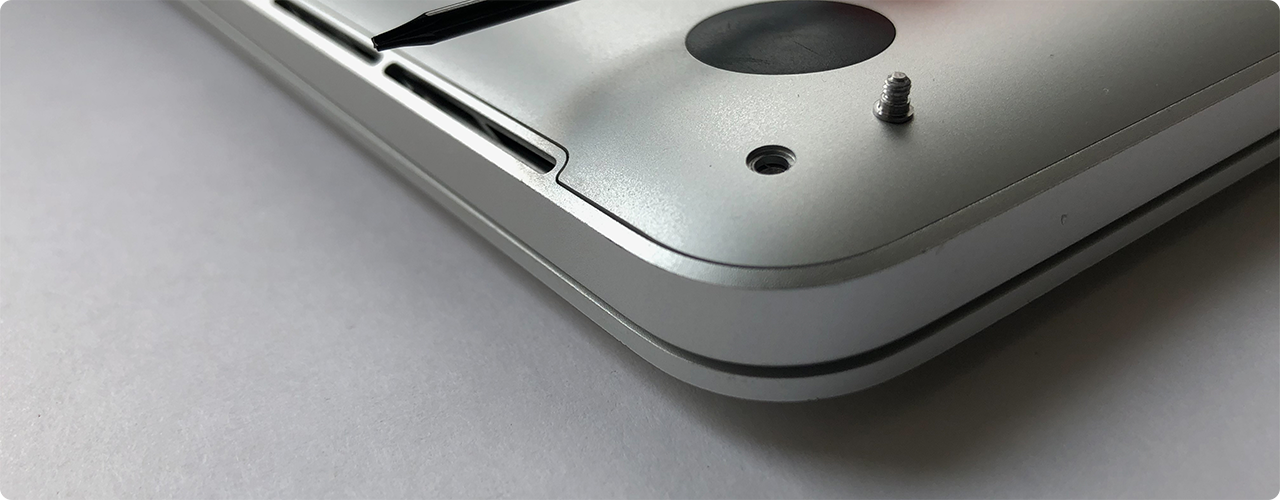
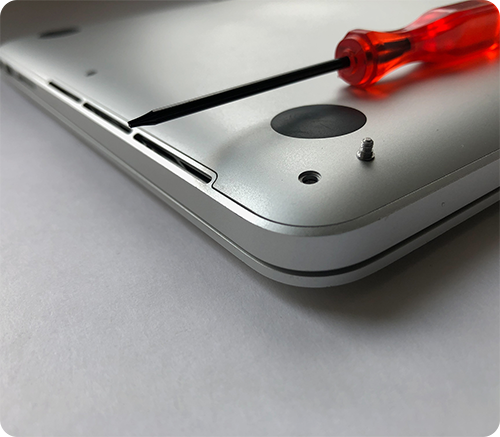
The model and year of your Mac can have a major effect on repair cost. Older Macs may have components that are easier to access or replace, while newer MacBook Air and MacBook Pro models often use more integrated hardware.
We’ll identify your Mac before recommending parts or repair work.
The Repair
Different repairs require different amounts of labor and different replacement components. Battery replacements, screen repairs, storage upgrades, software troubleshooting, and data recovery can all have different price ranges.
Replacement Parts
Parts pricing varies by Mac model and the component being replaced. Before ordering a replacement part, we’ll explain the expected cost and include it in your repair quote.
Parts Availability
Common parts may be available quickly, while specialized components can take longer to source. If a part needs to be ordered, we’ll let you know how it affects both the price and expected repair timeline.
Common Mac Repair Pricing
The prices below provide a starting point for some of our common services. Your final price may vary depending on the Mac model, the condition of the computer, and whether additional parts or services are required.
We’ll assess your device and provide a repair quote before repair work begins.
Battery Replacement
Older MacBooks with screw-mounted batteries generally start at $99 plus parts.
Newer MacBook Air and MacBook Pro models use batteries secured with strong adhesive, which can make replacement more labor-intensive. Pricing depends on the specific model and required parts.
Screen Replacement
Screen repair costs depend heavily on the Mac model and display type. Some older displays may allow individual component repairs, while many Retina models require replacement of the complete display assembly.
We’ll determine what your Mac needs and help you compare the cost of repair with replacement options.
SSD Upgrades
Many Intel-based Macs can benefit from an SSD upgrade, particularly older systems that still use traditional hard drives.
Most SSD upgrades start at $99 plus the cost of the drive. If your Mac has soldered storage or doesn’t support a conventional SSD upgrade, we’ll explain the available alternatives.
Slow Mac Cleanup
Software cleanup, storage optimization, and macOS troubleshooting typically start at $99 when no replacement parts are required.
If the slowdown is caused by aging hardware, we’ll explain whether an upgrade would provide a better improvement.
Data Recovery
If your Mac won’t start but the storage device is still accessible and healthy, data recovery or transfer may be possible.
Pricing depends on the condition of the storage device and the complexity of accessing or recovering the data. We’ll explain the options after assessing the computer.
macOS Installation
A clean macOS installation is $120.
Because reinstalling macOS can erase the existing drive, we recommend backing up important files beforehand. If you need help protecting or transferring your data, we can discuss those options before the installation.
Data Transfer
Standard data transfer is $120.
If you purchase a refurbished laptop from us, data transfer is available for $60 with your purchase, which is half the standard price.
How Mac Repair Quotes Work
You don’t have to know exactly what’s wrong with your Mac before bringing it in. We’ll assess the problem and explain what needs to happen next.
Bring In Your Mac
Bring your Mac to our Burlington shop at 196 College Street. If you have the power adapter, bring that with you as well.
We Assess the Problem
We’ll determine whether the issue is related to hardware, storage, macOS, software, or another component.
We Explain The Repair
Once we’ve identified the likely cause, we’ll explain the recommended repair and any alternatives worth considering.
You Get a Quote
We’ll provide a quote before repair work begins. You can review the expected cost and decide whether you want to proceed.
We Complete The Repair
Once approved, we’ll complete the repair and let you know when your Mac is ready for pickup.
When Repairing Isn’t the Best Option
Repair isn’t always the most cost-effective solution, particularly when an older Mac needs several expensive components or no longer meets your needs.
If the cost of repair approaches the value of a comparable refurbished Mac, we’ll explain both options so you can make an informed decision. We can also help you explore refurbished replacement options backed by a 1-year hardware warranty.
If you purchase a refurbished laptop from us, data transfer is available for $60 with your purchase to help make the transition easier.
Frequently Asked Questions
What Does the $99 Starting Price Include?
Most software repairs and many standard labor services start at $99 plus parts. If your repair requires replacement components, we’ll include those costs in the quote before repair work begins.
Do You Charge for Repair Estimates?
A quick assessment at the counter is free when we can identify the issue during your visit.
If your Mac needs to stay with us for more in-depth diagnosis, a $50 bench fee applies if you decide not to proceed with the repair. If you approve the repair, standard repair pricing applies.
Why Do Some MacBook Repairs Cost More Than Others?
Repair difficulty varies by model. Newer MacBooks often require more labor because batteries, displays, and other components can be more integrated than those in older models.
The required replacement parts can also have a significant effect on the final price.
Is Upgrading an Older Mac Worth It?
Often, yes. Many Intel Macs can benefit from an SSD upgrade or software cleanup, particularly when the existing hardware is still otherwise in good condition.
We’ll assess your Mac and let you know whether an upgrade, repair, or refurbished replacement offers the better value.
When Should I Replace My Mac Instead of Repairing It?
If the repair cost approaches the value of a comparable refurbished Mac, replacing it may be the more practical choice.
We’ll explain both options so you can decide based on the age and condition of your Mac, the repair cost, and what you need the computer to do.
Can You Tell Me the Repair Cost Before You Start?
Yes. We’ll provide a repair quote before repair work begins. This allows you to understand the expected cost and approve the work before we’re committed to the repair.
Related Services and Guides
Mac Repair
Explore our Mac repair services for iMacs, Mac minis, and older Mac Pro models, including hardware repairs, software troubleshooting, storage upgrades, and data services.
View Mac Repair Services
MacBook Repair
See our MacBook Air and MacBook Pro repair services, including battery replacements, screen repairs, storage upgrades, and performance troubleshooting.
View MacBook Repair Services
Why Is My Mac Running Slow?
Learn about common causes of slow Mac performance and when an SSD upgrade, software cleanup, or professional diagnosis may help.
Read the guide
How to Check If Your Mac Has a Virus
Learn how to recognize common malware, adware, browser hijackers, and other security problems that can affect your Mac.
Read the guide
Refurbished Laptops
If repairing your Mac isn’t the best option, explore refurbished computer options backed by a 1-year hardware warranty.
Read the guide
Wondering What Your Mac Repair Will Cost?
Bring your Mac to Computers for Change at 196 College Street in Burlington, or request a quote online. We’ll assess the problem, explain the recommended repair, and provide a quote before any repair work begins.
If repair isn’t the best option, we’ll help you understand the alternatives so you can make the right choice for your computer and budget.
What to Do Before and After Your Laptop Goes Missing
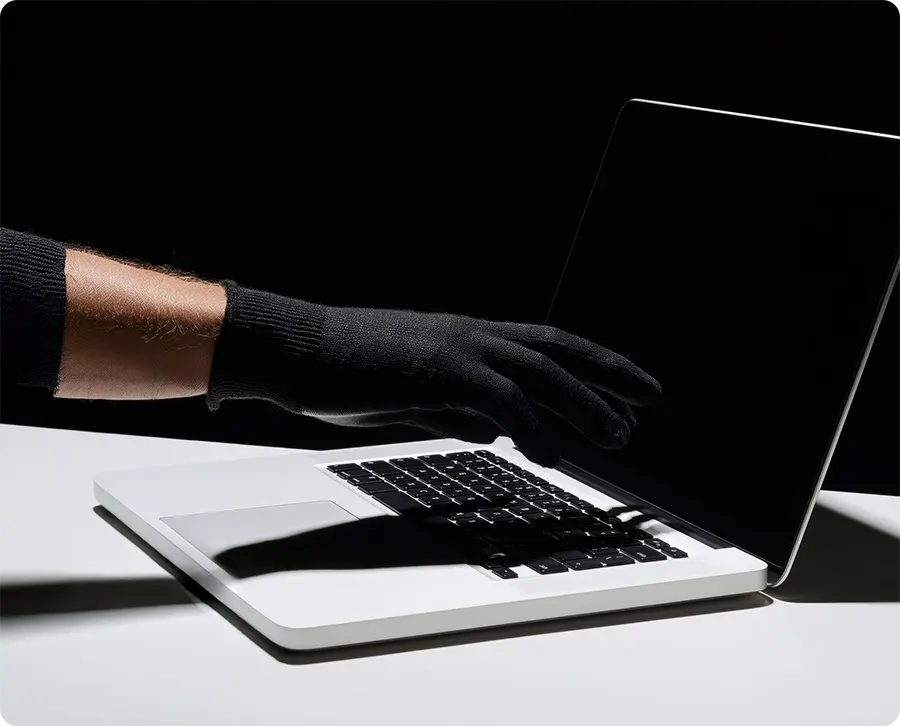
A lost or stolen laptop can be difficult to recover, especially if you don’t have the device’s identifying information. Learn what to record before anything happens, what to do if your laptop goes missing, and how local resources can help.
Before Your Laptop Goes Missing: Record These Details
The best time to prepare for laptop theft is before it happens. Keep your laptop’s identifying information somewhere other than the device itself so you can provide it to law enforcement if necessary.
Serial Number
Record your laptop’s serial number and keep it somewhere secure. On Macs, you can find it in System Settings > General > About or on the device itself. On Windows laptops, the serial number is often listed on a label underneath the computer.
MAC Address
Record the Wi-Fi MAC address and, if applicable, the Ethernet MAC address. You can find these in your laptop’s network settings.
Make and Model
Write down the manufacturer, model, screen size, year, and other identifying specifications.
Example: MacBook Pro 14-inch, 2023, M2 Pro, Space Gray.
Distinguishing Marks
Record anything that makes your laptop easier to identify, including stickers, scratches, engraving, dents, or chipped corners.
Tip: Take photos of your laptop and its identifying marks and store them somewhere you can access without the device.
What to Do If Your Laptop Is Stolen
If your laptop goes missing, act quickly but methodically. Start by reporting the theft and securing your accounts, then use any tracking features you had enabled.
Report the Theft to Local Law Enforcement
Provide the serial number, MAC address, make, model, color, and distinguishing marks in your report. The more identifying information you provide, the easier it may be to match the device if it is recovered later.
Use Find My or Built-In Tracking
If Find My was enabled on your Mac or a tracking feature was enabled on your Windows laptop, check it as soon as possible. Depending on the device and service, you may also be able to remotely lock or secure it.
Change Important Passwords
Change the passwords for your email, banking, cloud storage, and other accounts that may have been accessible from the laptop. Enable two-factor authentication where available.
Contact Your Insurance Provider
Homeowners or renters insurance may cover stolen electronics. Your insurer may ask for information from the police report when processing a claim.
Notify Your Bank
If financial accounts were accessible from the laptop, contact your bank and let them know about the theft. Monitor your accounts for unusual activity.
Burlington-Area Law Enforcement Contacts
If your laptop was stolen in or around Burlington, these agencies can help you file a report:
How a Computer Shop Can Help With Recovery
Computer shops that buy used devices may maintain records of sellers and purchased equipment. If a stolen laptop later appears at a shop, those records may help law enforcement identify the device.
Providing complete identifying information when you file your report can make it easier to match a recovered laptop to the original report.
If you sell or trade a device with Computers for Change, we record purchase information as part of the transaction.

How to Prevent Laptop Theft
A few simple precautions can reduce the risk of theft and make recovery easier if your laptop does go missing.
Frequently Asked Questions
What Information Should I Record About My Laptop?
Record the serial number, MAC address, make, model, color, and any distinguishing marks. Photos can also help document the laptop’s appearance.
Can I Track a Stolen Laptop?
Possibly. Macs can be tracked through Find My when it was enabled beforehand. Windows devices may also have built-in tracking features depending on the device and configuration.
Should I Report a Stolen Laptop to the Police?
Yes. Report the theft as soon as possible and provide the serial number and other identifying information. Keep a copy of the report or report number for your records and insurance claim.
Can a Computer Shop Help Recover a Stolen Laptop?
A shop may have records that can help law enforcement identify a stolen device if it is later brought in for sale or trade. However, recovery should be handled through law enforcement rather than attempting to retrieve the device yourself.
Does Homeowners or Renters Insurance Cover a Stolen Laptop?
It may, depending on your policy. Contact your insurance provider to confirm coverage and ask what documentation is required for a claim.
What Should I Do if My Laptop Is Stolen With My Passwords Saved?
Change passwords for important accounts as soon as possible, particularly email, banking, cloud storage, and other accounts containing sensitive information. Enable two-factor authentication where available.
Need Help With Your Computer?
Whether you need help securing your computer, transferring data, or dealing with another computer issue, Computers for Change can help.
Visit us at 196 College Street, Burlington, VT. or contact us with your question.
Computer Performance Problems We Can Diagnose and Fix
A slow laptop or desktop doesn’t always mean it’s time for a replacement. The problem may be an aging hard drive, limited memory, software issues, malware, overheating, or another hardware problem that can be repaired or upgraded.
Computers for Change can diagnose what’s slowing down your Windows laptop or desktop and explain whether a repair, upgrade, software cleanup, or replacement makes the most sense. Most repairs start at $99 plus parts, and we’ll provide a quote before repair work begins.


Common Causes of a Slow Computer
There isn’t one fix for every slow computer. We commonly see performance problems related to storage, startup programs, malware, overheating, memory, and aging hardware.
An Older Hard Drive
Many older computers still use traditional hard disk drives (HDDs), which are generally slower than modern solid-state drives (SSDs).
If your computer still uses an HDD, replacing it with an SSD can significantly improve startup times, application loading, and everyday responsiveness. We can assess your computer and determine whether an SSD upgrade is compatible and worthwhile.
Too Many Startup Programs
Programs that automatically launch when Windows starts can use memory and processing resources in the background. Cloud storage apps, messaging programs, game launchers, and update services can all contribute to slower startup and performance.
We can identify unnecessary startup programs and help optimize Windows without removing software you still need.
Low Storage Space
Windows needs available storage for updates, temporary files, and other system processes. A drive that’s nearly full can contribute to performance problems and make it harder to manage files and applications.
We can help clean up unnecessary files, identify storage problems, and determine whether adding or upgrading storage would be a better long-term solution.
Malware or Software Problems
Malware, unwanted software, outdated system files, and other software issues can cause a computer to slow down or behave unexpectedly.
If your computer suddenly became slower, starts displaying unusual pop-ups, or has programs running that you don’t recognize, we can check for malware and other software problems and recommend the appropriate repair.
Overwhelming
A laptop or desktop that gets too hot may reduce processor performance to protect its components. Dust buildup, blocked airflow, failing fans, or other cooling problems can contribute to overheating.
If your computer becomes slower after several minutes of use, feels unusually hot, or has fans running constantly, we can check the system for cooling and hardware issues.
Not Enough Memory
If you regularly run many browser tabs or several programs at once, limited RAM may be affecting performance.
Additional memory can improve multitasking on compatible computers. We’ll check your current configuration and determine whether a RAM upgrade is appropriate.
What We Can Do to Improve Computer Performance
Once we identify what’s causing the slowdown, the right solution depends on the computer and the problem.
SSD Upgrades
Replacing an older hard drive with an SSD can provide a significant improvement in startup and application loading times on compatible computers.
RAM Upgrades
If your computer has limited memory, adding RAM may improve multitasking and overall responsiveness.
Windows & Software Optimization
We can troubleshoot software problems, reduce unnecessary startup activity, address Windows issues, and reinstall the operating system when necessary.
Malware Removal
If malware or unwanted software is contributing to the slowdown, we can clean up the computer and address related software problems.
Hardware Diagnosis
Sometimes slow performance is a symptom of a failing component. We’ll assess the computer to determine whether the problem is related to storage, cooling, memory, or another hardware component.
What You Can Try Before Bringing In Your Computer
Some basic maintenance steps can resolve minor performance issues:
If these steps don’t improve performance, continuing to disable programs or change system settings without knowing the cause can create additional problems. That’s when a professional assessment can help.
What Happens When You Bring In a Slow Computer?
You don’t have to know what’s causing the slowdown before you visit. We’ll help identify the problem and explain your options.
We Assess the Computer
We’ll look at the computer’s hardware, storage, software, and overall performance to identify potential causes of the slowdown.
We Identify the Problem
The issue may be as simple as unnecessary software or as significant as a failing hard drive. We’ll explain what we’re seeing and what may be contributing to the performance problem.
We Recommend the Right Solution
Depending on the computer, the solution may involve an SSD or RAM upgrade, software cleanup, malware removal, hardware repair, or another service.
You Get a Quote Before Repair
We’ll explain the recommended work and provide a quote before repair work begins. You can then decide whether repairing or upgrading the computer makes sense for you.
When Should You Bring In a Slow Computer?
If you’ve cleared unnecessary files, reduced startup programs, installed updates, and restarted your computer but it’s still running slowly, the underlying problem may require a closer look.
It’s especially worth having the computer assessed if the slowdown appeared suddenly, the computer is overheating, programs keep crashing, the hard drive is making unusual noises, or performance continues to decline.
Most repairs start at $99 plus parts. If the computer is too old or the repair isn’t cost-effective, we’ll explain your replacement options instead.
Is Your Computer Worth Repairing?
A slow computer isn’t necessarily an old computer that needs to be replaced. An SSD, RAM upgrade, software cleanup, or other repair may extend the useful life of a system for considerably less than the cost of a new computer.
If the recommended repair doesn’t make financial sense, we’ll tell you. Computers for Change also offers refurbished Windows laptops backed by a 1-year hardware warranty, and data transfer is available for $60 with the purchase of a refurbished computer.
Frequently Asked Questions
Why Is My Laptop or PC Running So Slow All of a Sudden?
A sudden slowdown can be caused by malware, software changes, limited storage, excessive resource use, overheating, or a hardware problem. If basic troubleshooting doesn’t resolve it, a professional assessment can help identify the cause.
Will Upgrading to an SSD Make My Computer Faster?
If your computer still uses a traditional hard drive, an SSD upgrade can be one of the most noticeable performance improvements available. Faster startup times, quicker application loading, and smoother everyday performance are common benefits.
How Much Free Storage Should My Computer Have?
Try to avoid filling your drive completely. Windows needs available storage for updates, temporary files, and other system processes. If your drive is nearly full, we can help determine whether cleanup or additional storage is the better solution.
Can You Tell Me If My Computer Is Worth Repairing?
Yes. We’ll assess the laptop or desktop, identify what’s contributing to the slowdown, and explain whether repairing, upgrading, or replacing the computer makes the most sense.
Can You Fix a Slow Gaming PC?
Yes. We can diagnose performance problems on gaming desktops and laptops, including storage, memory, cooling, software, and other hardware issues.
When Should I Bring My Computer in for Repair?
If you’ve tried basic troubleshooting and the computer is still unusually slow, it’s worth having it assessed. We can identify hardware and software problems and recommend an appropriate repair or upgrade.
Related Services and Guides
Get Help With a Slow Laptop or PC
You don’t have to replace a slow computer without first finding out what’s causing the problem. Visit Computers for Change at 196 College Street in Burlington or request a quote online.
We’ll help determine whether your computer needs a software cleanup, hardware upgrade, repair, or replacement and explain your options before work begins.
Get Suspicious Computer Problems Checked
Suspect your laptop or desktop has a virus, malware, or unwanted software? Computers for Change can diagnose and clean up Windows computers affected by malware, adware, browser hijackers, fake security warnings, and other unwanted programs. We’ll examine the problem, explain your options, and provide a quote before repair work begins.
What Windows Malware Can Look Like
Malware doesn’t always make itself obvious. Sometimes the first sign is a browser that suddenly redirects you, an unfamiliar program that appears at startup, or security settings that won’t stay enabled.
Other symptoms, such as a slow computer or frequent crashes, can have completely unrelated causes. Checking a few common areas can help you determine whether you’re dealing with a potential security problem or something else.
Watch for Unexpected Pop-Ups and Security Warnings
Unexpected pop-ups are one of the more noticeable signs that something isn’t right, but not every warning means malware is installed on your computer.
Be cautious if you notice:
- Pop-ups appearing repeatedly while browsing
- Full-screen warnings claiming your computer is infected
- Messages telling you to call a support number immediately
- Prompts asking you to download unfamiliar security software
- Ads appearing on websites that normally don’t show them
Some of these warnings are simply malicious webpages designed to scare you into calling a scammer, downloading software, or providing payment information.
If a webpage says your computer is infected, don’t call the displayed number or install anything it recommends. Close the page instead.
Check for Browser Redirects and Unfamiliar Extensions
A browser that suddenly behaves differently may be affected by adware, a browser hijacker, or an unwanted extension.
Look for changes such as:
- Your homepage changing without your permission
- Searches opening in an unfamiliar search engine
- Search results redirecting to unexpected websites
- New toolbars or browser extensions
- Unusual advertisements appearing on multiple websites
- Tabs or webpages opening by themselves
Check your browser’s extension or add-on settings and review what’s installed. If you see an extension you know you didn’t install, don’t provide it with additional permissions.
Look for Programs You Don’t Recognize
Some unwanted software installs alongside other programs or is downloaded after clicking a misleading advertisement or installer.
Open Settings > Apps > Installed apps and look through the programs on your computer. Pay particular attention to unfamiliar software that appeared around the same time your problems started.
Don’t automatically uninstall something simply because you don’t recognize its name. Windows computers often contain legitimate drivers, manufacturer utilities, and system components with unfamiliar names, so research the program first or have it checked if you’re unsure.
Check Windows Security
Windows includes built-in security tools that can scan your computer for viruses and other threats.
Open Windows Security and select Virus & threat protection. From there, you can check for current threats, review recent security activity, and run a scan.
Also pay attention if Windows Security:
- Won’t open
- Shows unexpected errors
- Reports that protection is disabled
- Keeps turning off after you enable it
- Detects the same threat repeatedly
Security software that unexpectedly stops working can warrant a closer look, especially when it’s happening alongside other unusual computer behavior.
Pay Attention to Sudden Performance Problems
A computer that suddenly becomes unusually slow can sometimes be affected by unwanted software running in the background.
You might notice:
- Programs taking much longer to open
- Frequent freezing or crashing
- Fans running heavily while the computer is idle
- Unusually high CPU or memory usage
- The computer becoming slow shortly after startup
However, a slow PC does not automatically mean you have a virus. Low storage, too many startup programs, Windows updates, aging hardware, and other software problems can cause similar symptoms.
If slow performance is your only symptom, start with our Why Is My Laptop or PC Running Slow? guide before assuming malware is responsible.
Watch for Missing, Renamed, or Inaccessible Files
Changes to your personal files can indicate a more serious problem.
If documents, photos, or other files suddenly won’t open, have unfamiliar extensions, or have been renamed without your involvement, stop and investigate before continuing to use the computer normally.
A message demanding payment to restore access to your files may indicate ransomware. Disconnect the computer from the internet and avoid interacting with the payment instructions until the computer can be evaluated.
Does This Mean Your Computer Definitely Has a Virus?
No single symptom proves that your computer has malware.
Pop-ups may come from browser notification permissions. A slow computer may have low storage or too many startup programs. Crashes can be caused by software conflicts or failing hardware, and an unfamiliar application may be a legitimate program installed by the computer manufacturer.
The more important question is whether something has changed unexpectedly, especially if several warning signs appear at the same time. If you’re unsure what’s causing the behavior, diagnosing the computer is safer than guessing at the solution.
Other Things Worth Trying
If your computer is still usable and you’re not dealing with ransomware or another serious security problem, there are a few basic checks you can safely make yourself:
If you entered a password into a suspicious website, change that password from a trusted device and enable two-factor authentication when available.
If you provided banking or payment information, contact your bank or card issuer as soon as possible.
When to Bring Your Computer In
If pop-ups keep returning, your browser continues redirecting you, Windows Security won’t work properly, or the computer still behaves strangely after basic troubleshooting, it may be time for a professional assessment.
Computers for Change can check Windows laptops and desktops for malware, adware, browser hijackers, unwanted software, and other problems that may be causing the symptoms. Depending on what we find, the appropriate solution could involve removing unwanted software, repairing Windows, cleaning up browser settings, or reinstalling Windows.
Most software repairs start at $99, and we’ll explain the recommended work and provide a quote before repair begins.
What to Expect When You Bring In Your Computer
You don’t need to diagnose the problem yourself before visiting our Burlington shop. Tell us what you’ve noticed, and we’ll help determine what’s causing it.
Tell Us What’s Happening
Bring your laptop or desktop to our shop and describe what changed. Pop-ups, redirects, unfamiliar programs, security warnings, slow performance, and anything you clicked or downloaded can all provide useful clues.
Walk-ins are welcome Tuesday through Saturday. If you’re bringing a laptop, bring its charger if you have it.
We Assess the Problem
We’ll evaluate the computer for malware, unwanted software, browser problems, Windows issues, and other possible causes of the symptoms.
The goal is to identify what’s actually wrong rather than assume every unusual behavior is a virus.
We Explain Your Options
Once we understand the problem, we’ll explain what we recommend.
Depending on the situation, that might involve removing unwanted software, correcting browser problems, troubleshooting Windows, or reinstalling Windows when cleanup isn’t the best option.
You Get a Quote
We’ll provide a quote before repair work begins. You can decide whether you want to proceed after you understand the recommended service and cost.
If the computer needs to stay with us for testing or diagnosis and you decide not to proceed with the repair, a $50 bench fee applies.
We Complete the Service
Once approved, we’ll perform the appropriate cleanup or repair and address related problems identified during the process.
We’ll let you know when your computer is ready.
What If Your Files Have Been Encrypted?
If your files suddenly become inaccessible and you see a message demanding money to restore them, you may be dealing with ransomware.
Disconnect the affected computer from the internet and avoid clicking links, contacting unfamiliar support numbers, or following payment instructions from the message. Bring the computer in for evaluation so we can determine what happened and discuss the available options.
Removing ransomware doesn’t necessarily restore encrypted files. Depending on the specific situation, recovery may require restoring files from a clean backup or exploring other data recovery options.
How Much Does Virus and Malware Removal Cost?
Most software repairs at Computers for Change start at $99, although the final price depends on what’s causing the problem and the work required.
If we can identify the issue at the counter, we’ll provide a free quote. If the computer needs to stay with us for testing or diagnosis and you decide not to proceed with the repair, a $50 bench fee applies.
We’ll explain what we find, what we recommend, and the expected cost before repair work begins.
How to Reduce Your Risk of Malware
You can’t eliminate every online threat, but a few everyday habits can reduce your risk.
Keep Windows, your browser, and other important software updated. Download programs from trusted sources, be cautious with unexpected email attachments and links, and avoid security or cleanup programs advertised through alarming pop-ups.
Use strong, unique passwords for important accounts and enable two-factor authentication when available. Regular backups are also important, particularly if your computer contains files you can’t easily replace.
Frequently Asked Questions
Can Windows Computers Really Get Viruses?
Yes. Windows computers can be affected by viruses and other types of malware, including adware, browser hijackers, ransomware, and unwanted software.
Not every computer problem is caused by malware, however, so diagnosis is important when the symptoms aren’t clear.
How Do I Know if a Virus Warning Is Real?
Be suspicious of webpages that suddenly claim your computer is infected and tell you to call a phone number, provide payment information, or download unfamiliar security software.
Close the page rather than following its instructions. If warnings continue appearing outside the browser or you’re unsure whether the computer is infected, have it checked.
Do I Need Third-Party Antivirus Software?
Windows includes built-in security features through Windows Security and Microsoft Defender Antivirus.
For many users, keeping Windows updated and following safe browsing and downloading practices provides a solid baseline. Additional security software may make sense in some situations, but installing multiple security programs isn’t automatically better.
I Clicked a Suspicious Link. What Should I Do?
If you clicked the link but didn’t enter information or download anything, close the page and run a security scan.
If you entered a password, change it from a trusted device and enable two-factor authentication when available. If you entered payment or banking information, contact your bank or card issuer promptly.
Can You Remove Malware From My Computer?
Yes. We can assess Windows laptops and desktops affected by malware, adware, unwanted software, browser hijackers, and related software problems.
We’ll determine what’s causing the problem and explain the recommended repair before starting work.
Will I Lose My Files During Virus Removal?
Not necessarily. Many malware and unwanted software problems can be addressed without removing personal files.
If reinstalling Windows is the safest or most practical solution, we’ll discuss your data and backup options before proceeding.
Why Is My PC Slow if It Doesn’t Have a Virus?
Malware is only one possible cause of poor computer performance.
Limited storage, startup programs, software problems, Windows updates, aging hardware, and other issues can also make a computer run slowly.
Can You Remove Ransomware?
We can evaluate a computer affected by suspected ransomware and discuss the available options.
Depending on what happened, the next step may involve malware removal, reinstalling Windows, restoring files from a clean backup, or considering data recovery options.
Related Services and Guides
PC Repair
Learn about our Windows desktop and PC repair services, including hardware troubleshooting, software problems, upgrades, and repairs.
Read the guide
Laptop Repair
Explore repair options for Windows laptops, including hardware problems, software troubleshooting, upgrades, and other common issues.
Read the guide
Why Is My Laptop or PC Running Slow?
Learn what commonly causes slow computer performance and what you can check before scheduling a repair.
Read the guide
How Much Does Laptop and PC Repair Cost?
See what affects computer repair pricing, what services may cost, and what to expect before approving a repair.
Read the guide
Mac Virus Guide
Learn how to recognize common signs of malware, adware, browser hijackers, and fake security warnings on a Mac.
Read the guide
Think Your Laptop or PC May Have a Virus?
If your Windows computer keeps showing pop-ups, redirecting your browser, displaying security warnings, or simply isn’t behaving normally, you don’t have to diagnose it yourself.
Bring your laptop or desktop to Computers for Change at 196 College Street in Burlington. We’ll assess the problem, explain what we find, and provide a quote before repair work begins.